
How To Turn On "Open To Work" On LinkedIn (2026)


Looking for a new job but don't want to announce it to everyone (especially your current boss)? LinkedIn's "Open to Work" feature was built exactly for this. It lets you signal to recruiters that you're available without broadcasting it publicly.
When you set it up correctly, recruiters using LinkedIn Recruiter can find you when they search for candidates matching your target roles. You control who sees it, and you can turn it off whenever you want.
This guide walks you through the exact steps for desktop and mobile, explains the two visibility options (and which one to choose), shows you what recruiters actually see, and gives you a privacy playbook if you're employed and searching for jobs discreetly.
What Does "Open to Work" Actually Do on LinkedIn?
When you enable Open to Work, you're adding job preferences to your LinkedIn profile. Things like job titles you want, locations you're considering, and whether you're open to remote work. LinkedIn shares these preferences with recruiters who use LinkedIn Recruiter so they can find you in searches.
Here's what most people miss:
Your preferences aren't automatically public. By default, they're only visible to recruiters using LinkedIn Recruiter. You have to explicitly choose to share with all LinkedIn members if you want the full public signal.
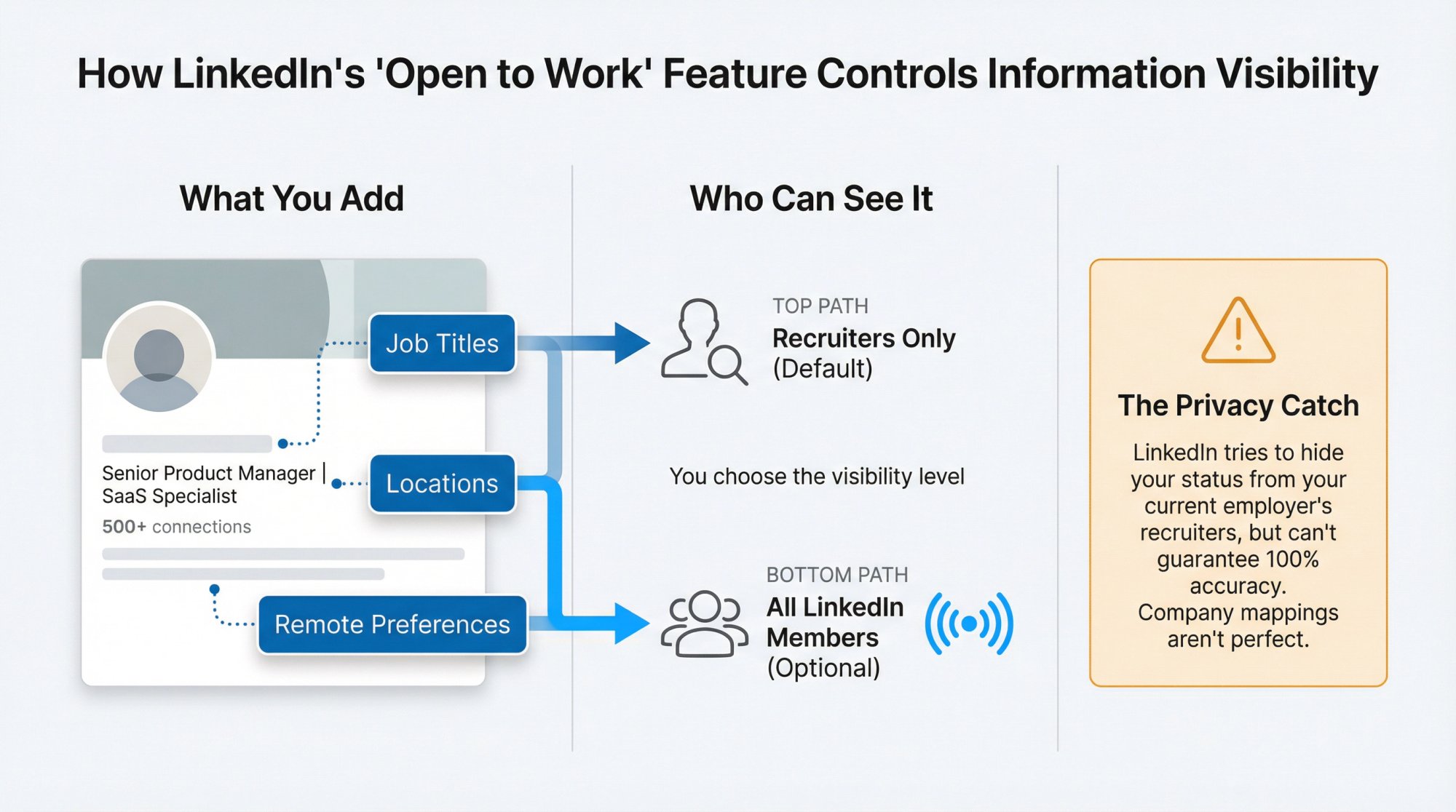
The catch:
"Recruiters-only" isn't a perfect privacy shield. LinkedIn says it takes steps to prevent recruiters at your current company (and related companies) from seeing your preferences, but it can't guarantee 100% accuracy. Company mappings aren't perfect, and recruiters can move between organizations.
If you're employed and need absolute discretion, combine "recruiters-only" mode with the privacy strategies for job searching while employed we cover later.
How To Turn On "Open To Work" (Step-by-Step)
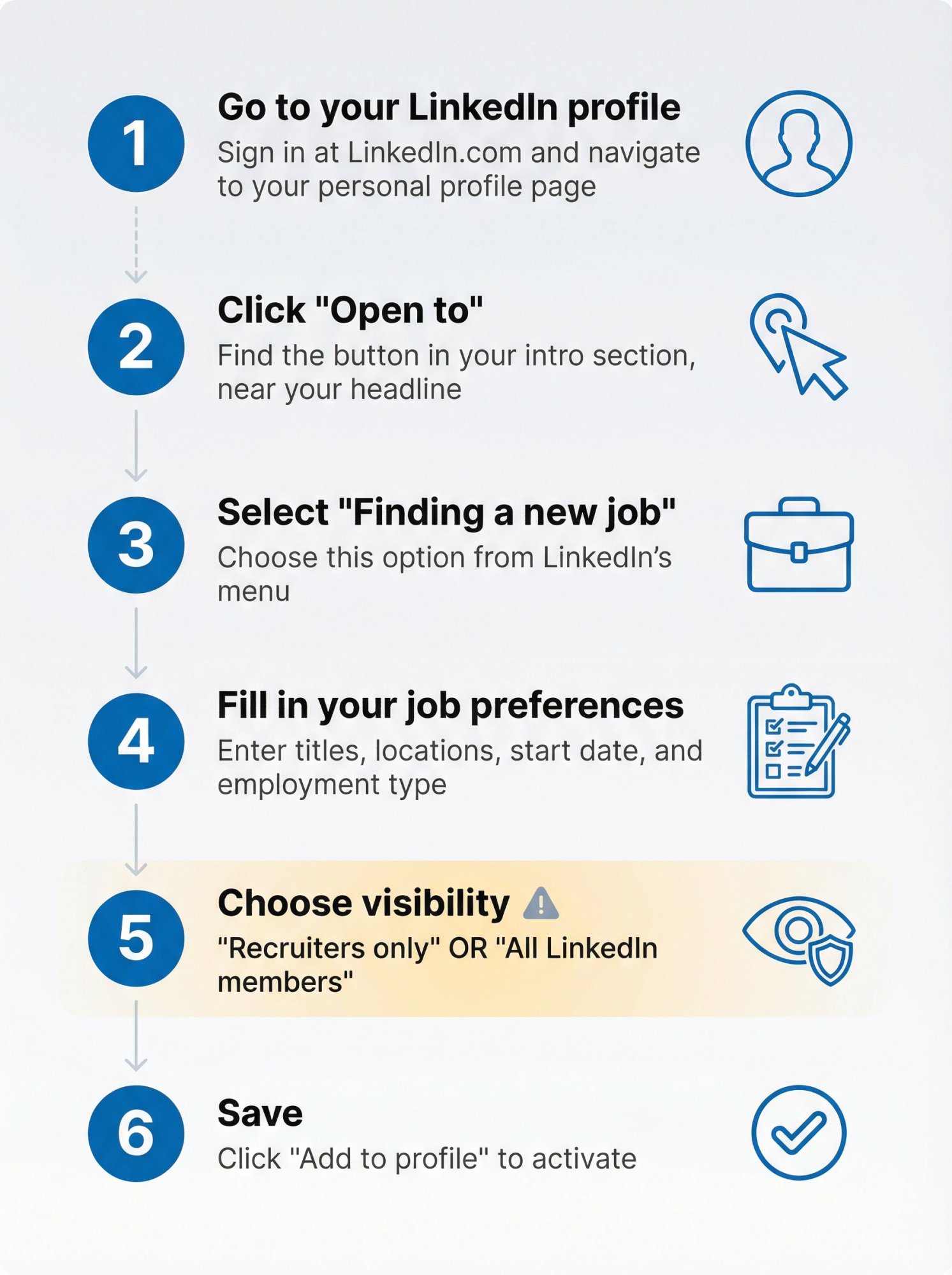
If you just want the fastest path, here it is:
① Go to your LinkedIn profile
② Click "Open to" (in your intro section, near your headline)
③ Select "Finding a new job"
④ Fill in your job preferences (titles, locations, start date, employment type)
⑤ Choose visibility: "Recruiters only" or "All LinkedIn members"
⑥ Save (click "Add to profile")
That's it. These steps work on desktop and mobile, and you can edit or turn it off anytime.
Above: LinkedIn's official help documentation provides detailed guidance on enabling and configuring the Open to Work feature, including visibility options and privacy considerations.
Privacy matters: If you're employed and need discretion, "recruiters-only" mode is your safest bet, but combine it with the privacy strategies below for maximum protection.
Let's walk through the details so you don't accidentally share it with the wrong people.
How To Turn On Open to Work on Desktop
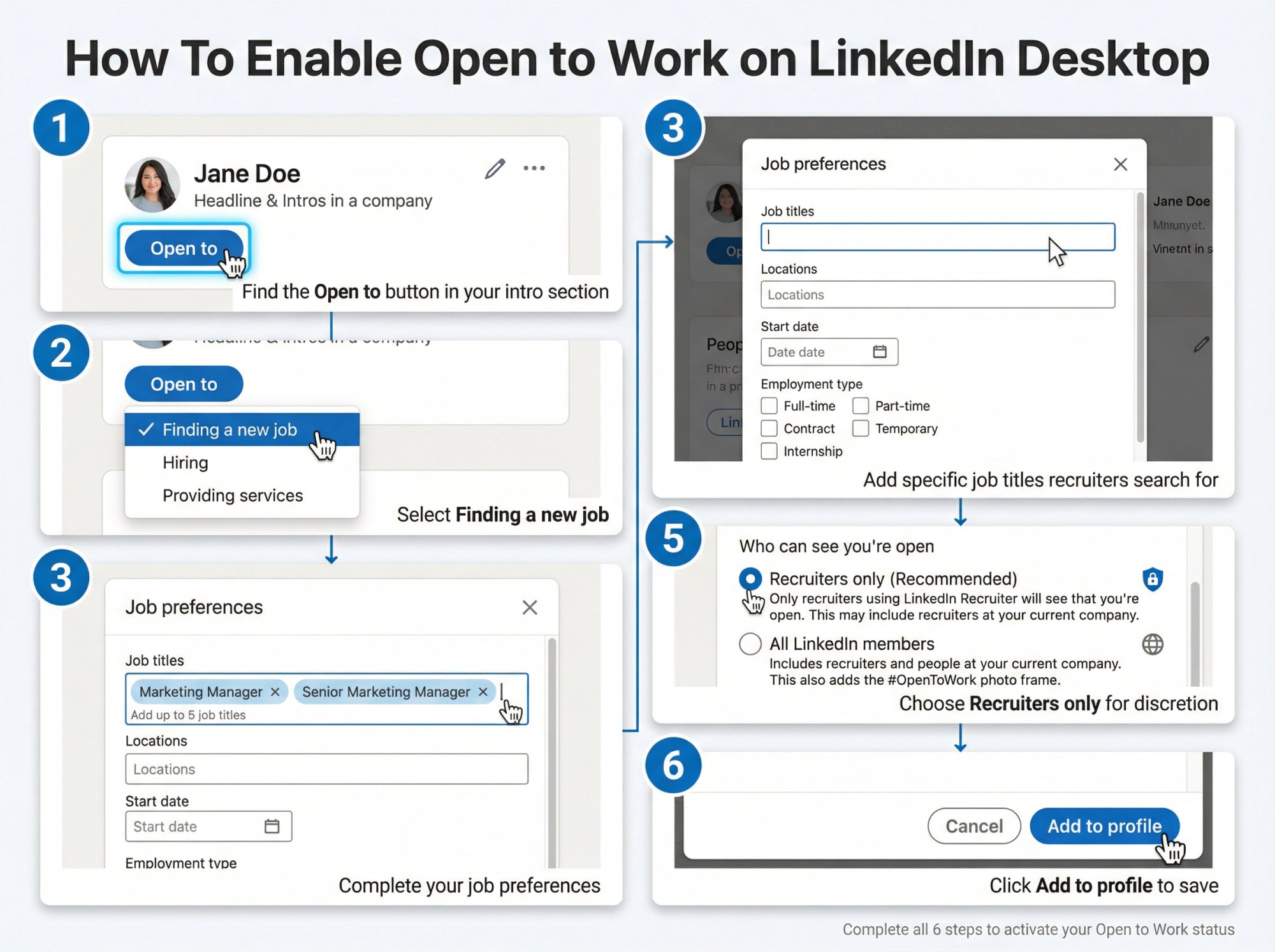
Here's the step-by-step for LinkedIn on a desktop browser:
1. Go to your LinkedIn profile page (make sure you're signed in at LinkedIn.com).
2. Find the "Open to" button in your intro section, right near your headline. Click it.
3. Choose "Finding a new job" from the options LinkedIn shows.
4. Complete your job preferences. LinkedIn will prompt you for:
• Job titles you're interested in
• Locations (and whether you're open to remote)
• Start date / availability
• Employment type (full-time, contract, part-time, etc.)
Note: If you're in certain regions like India, you might also see fields for salary expectations and notice period.
5. Choose who can see you're open. This is the critical decision:
→ Recruiters only (recommended if you're employed and want discretion)
→ All LinkedIn members (public signal, plus optional green #OpenToWork photo frame)
6. Click "Add to profile" to save.
Your Open to Work status is now live, and recruiters can start seeing your preferences when they search.
How To Turn On Open to Work on Mobile
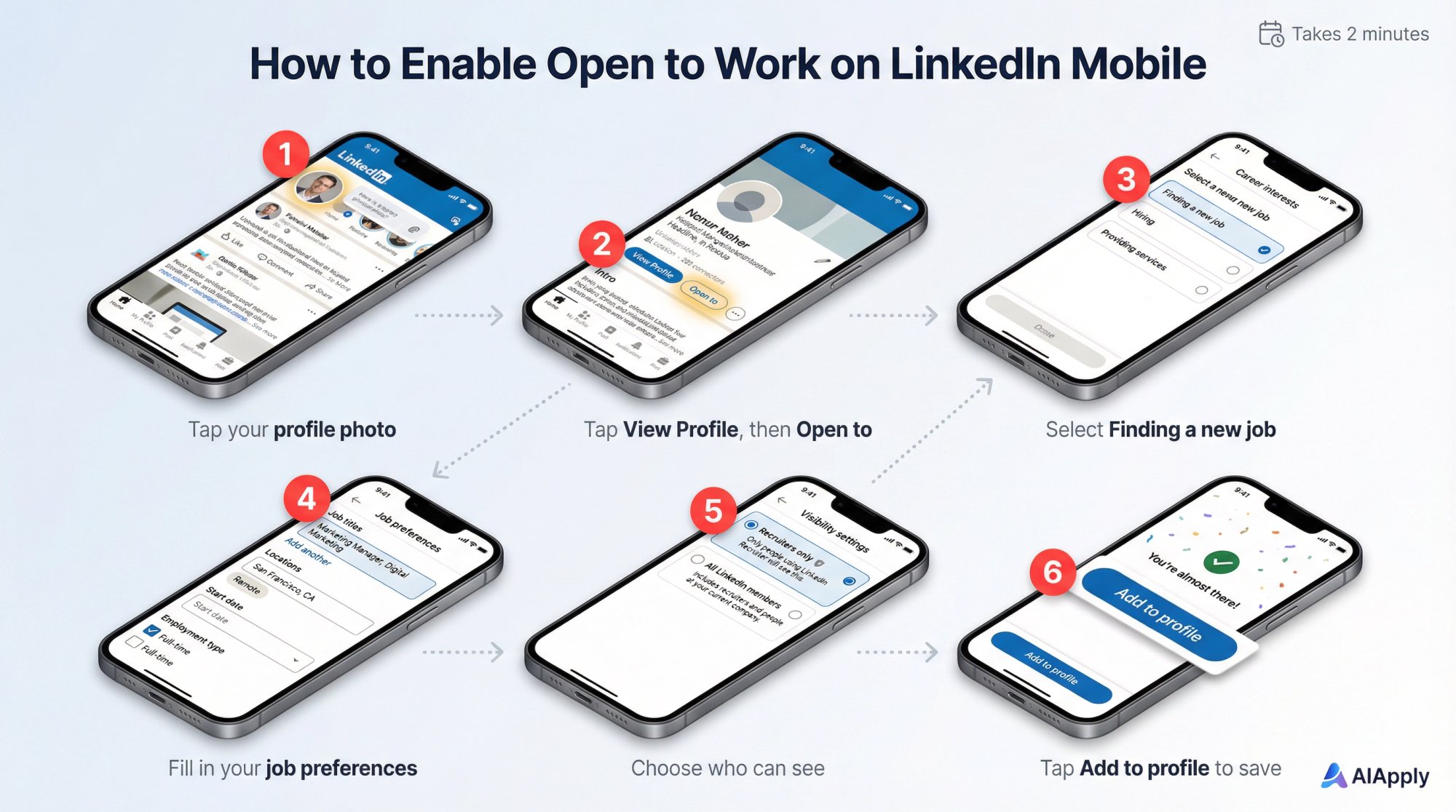
The mobile process is nearly identical:
1. Open the LinkedIn app on your phone.
2. Tap your profile photo, then tap "View Profile."
3. Tap "Open to" in your intro section.
4. Tap "Finding a new job" and fill out the same preferences (job titles, locations, start date, employment type).
5. Choose visibility:
→ Recruiters only
→ All LinkedIn members
6. Save.
If something doesn't load correctly on mobile, LinkedIn recommends signing out and back in, trying incognito mode, or clearing your cache. You can also enable it via the Jobs tab if the "Open to" button isn't showing up.
Can't Find the "Open to" Button? Try This
LinkedIn gives you an alternate route if your profile view is glitching or the "Open to" button isn't visible:
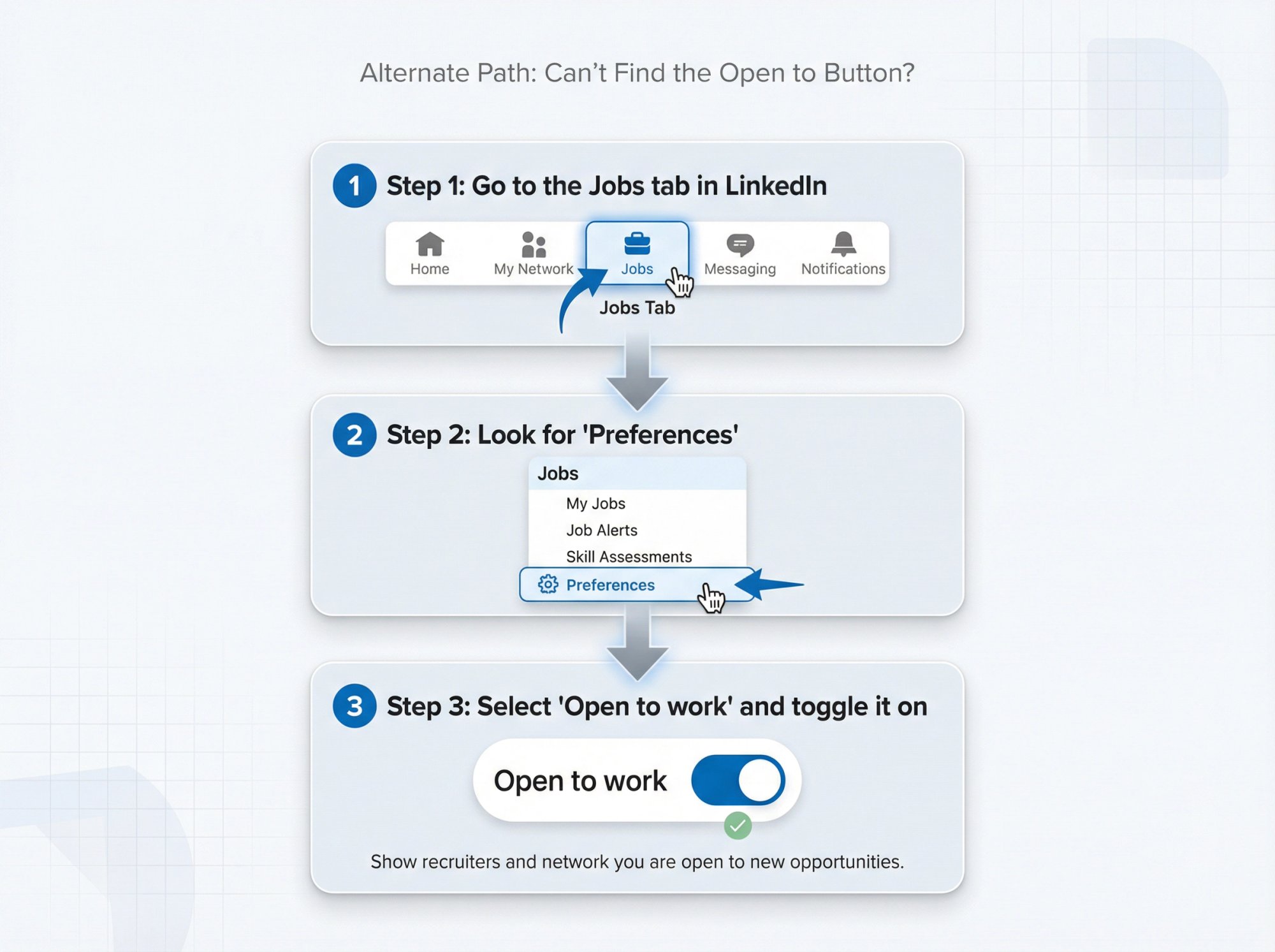
Go to the Jobs tab in LinkedIn
Look for "Preferences"
Select "Open to work" and toggle it on
This method pulls up the same settings, just from a different entry point. Use it if the profile button isn't cooperating.
"Recruiters Only" vs "All LinkedIn Members": Which Is Better?
This choice determines who sees you're open and whether the green #OpenToWork photo frame appears on your profile.
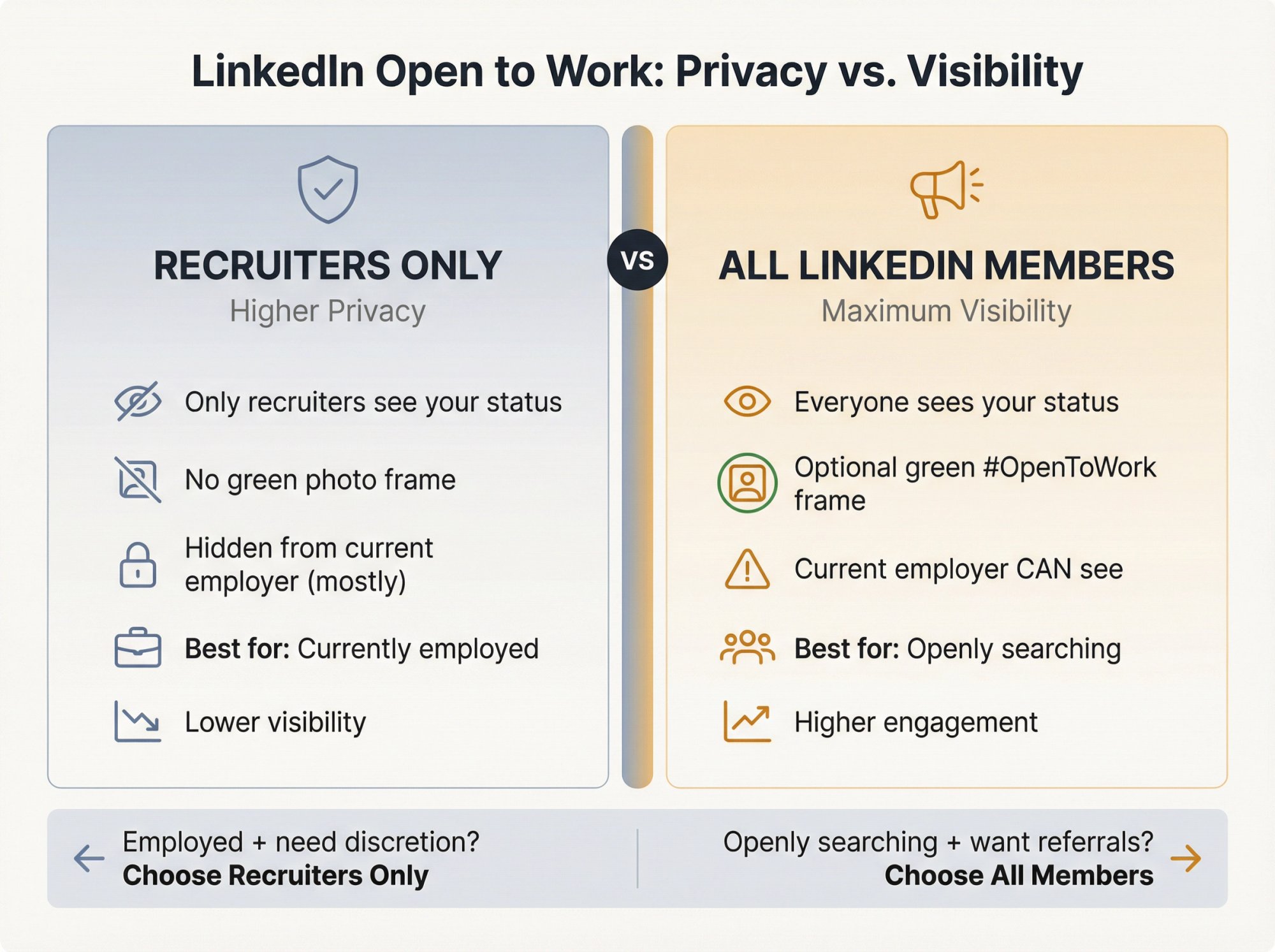
When to choose "Recruiters only"
Pick this if you're currently employed, exploring quietly, or don't want your network asking questions.
• Only recruiters using LinkedIn Recruiter can access your career interests.
• LinkedIn says it tries to hide your preferences from recruiters at your current company (and related companies), but it can't guarantee perfect privacy. Company mappings aren't perfect.
• You typically won't show the public green frame on your profile photo.
When to choose "All LinkedIn members"
Pick this if you're openly job searching, unemployed, or actively asking for referrals.
• Your status becomes visible to all members, including people at your current company.
• LinkedIn can add the green #OpenToWork frame to your profile photo (a strong public signal).
• You'll likely get more direct messages and connection requests from your network (which can be good or overwhelming, depending on your situation).
A simple decision rule
Employed + want discretion? → Recruiters only
Openly searching + want referrals? → All LinkedIn members
The simple truth: If you're unsure about visibility, start with "recruiters only." You can always switch to public later, but you can't unsend a public signal.
What Do Recruiters See When You Turn On "Open To Work"?
Understanding the recruiter view helps you set preferences that get you found.
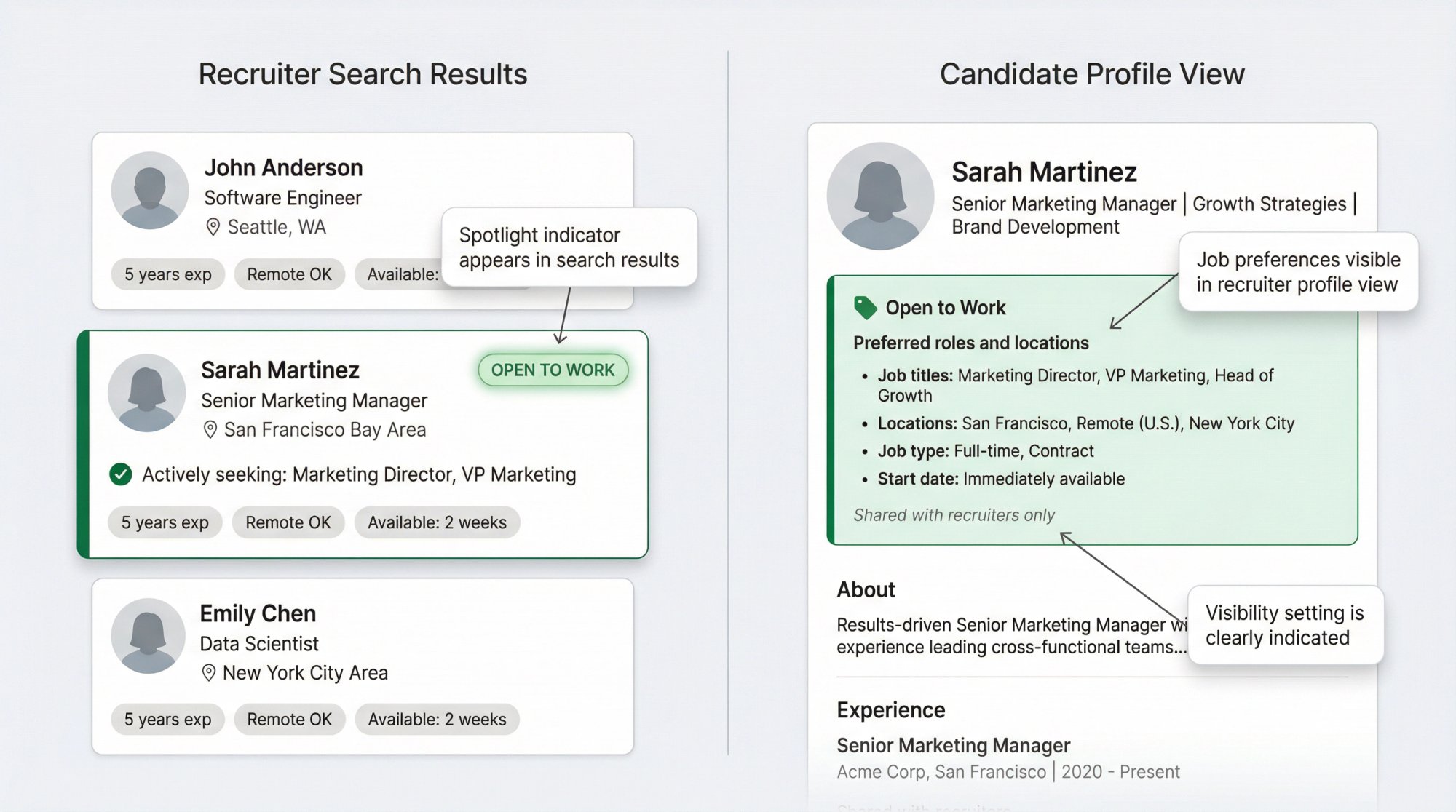
According to LinkedIn's Recruiter documentation:
• Candidates flagged as "Open to Work" can appear in Recruiter search results using an Open to work spotlight or filter.
• Recruiters may see an "Open to Work" indicator in the results list and in your profile view inside Recruiter.
• If you're sharing Open to Work with all members, recruiters will also see the #OpenToWork photo frame on your regular LinkedIn profile.
What this means for you: Your chosen job titles and locations aren't just "preferences." They become part of how you're discovered. Be intentional about what you select.
How to set preferences recruiters actually search for
Use the exact job titles recruiters search for. If you're a "Marketing Manager," don't just put "Marketer." Include common variants too. Check out relevant career pages on AIApply to see how roles are typically titled.
Don't choose every location on Earth. Pick the places you'd actually accept a job. If you select 50 cities, you'll get messaged for roles you don't want.
Specify remote/hybrid/on-site clearly so you don't waste time on mismatched outreach.
How To Edit or Turn Off "Open To Work"
You're not locked in. You can update your preferences or disable the feature anytime.
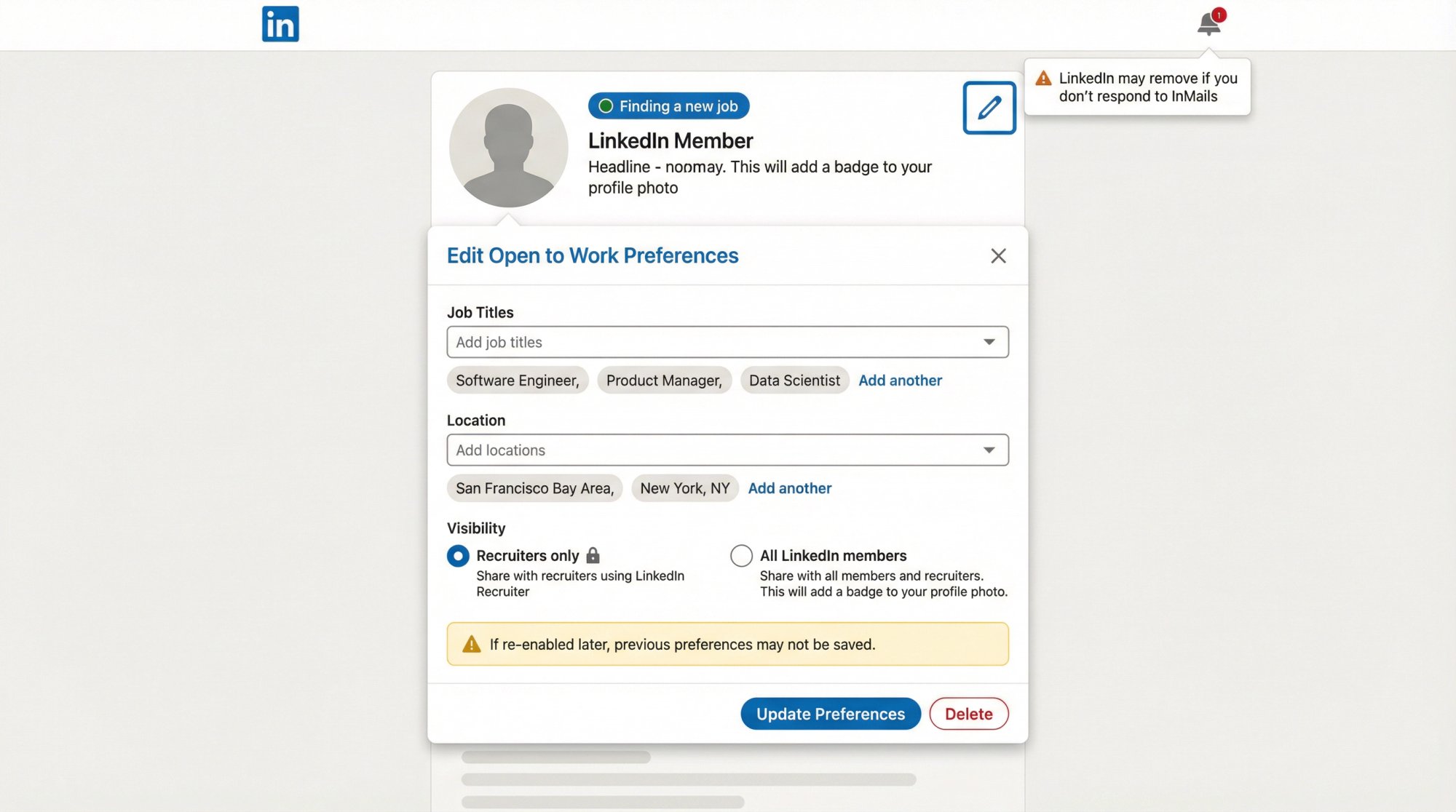
To edit your preferences
1. Go to your profile
2. Find the "Open to work" section
3. Click/tap the pencil (edit) icon
4. Update your job titles, locations, or visibility setting
To turn it off completely
Inside that same edit view, choose "Delete" to disable Open to Work entirely. LinkedIn notes that if you re-enable it later, your previous preferences might not be saved, so you may need to set them up again.
LinkedIn can remove it automatically (if you ghost recruiters)
Here's something most people don't know: LinkedIn says if it notices you stop responding to InMails, it may email you to confirm you still want Open to Work enabled. If you don't confirm, LinkedIn might remove the status until you turn it on again.
Keep the signal active: LinkedIn may remove your Open to Work status if you ghost recruiters. Even a polite "not a fit" response keeps you visible in searches.
So if you enable it, respond to recruiter messages (even if it's just a polite "not a fit"). It keeps the signal active and helps you attract the right job recruiters.
How To Job Search Privately While Employed
Open to Work "recruiters-only" mode is a start, but your activity can still signal job searching. Sudden profile edits, new connections with recruiters, and browsing hiring managers at target companies all leave footprints.
Here's how to tighten things up:
① Turn off "Share profile updates" (so edits aren't broadcast)
By default, LinkedIn notifies your network when you make job changes, education changes, and other profile updates. You can turn this off in your settings.
This is one of the biggest stealth moves if you're planning to refresh your headline, add new skills, or optimize your LinkedIn profile for better recruiter visibility.
② Hide your connections list (optional but powerful)
By default, your 1st-degree connections can browse your connections list. You can change this in Settings → Visibility → Connections.
Note: LinkedIn's documentation for this setting is older (last updated 3 years ago as of this writing), but the setting still exists in current Visibility controls.
③ Browse profiles in private mode when researching companies or people
If you're viewing hiring managers, recruiters, or target companies and want fewer signals, LinkedIn offers private and semi-private browsing modes.
Tradeoff: Private mode limits the details you see about who viewed your profile (depending on your account type).
④ Use job alerts instead of scrolling the Jobs tab constantly
LinkedIn job alerts are underrated and fast. You can create alerts for specific searches and choose notification frequency. LinkedIn says the max number of job alerts is 20, so use them strategically.
Set alerts for your target job titles, dream companies, and maybe one "stretch" search (roles one level up). You're notified when the right opportunities appear, without having to browse Jobs every day (which can look suspicious if you're doing it from your work laptop).
You can also use job application tracking tools to organize your search efficiently.
Open To Work Not Showing? How To Fix It
If LinkedIn's Open to Work settings aren't appearing or something errors out, LinkedIn's troubleshooting checklist is:
1. Sign out and sign back in
2. Try incognito/private browsing mode
3. Clear cache and cookies
4. Try a different browser (and make sure it's up-to-date)
Also check:
• You're editing a personal profile (not a company page)
• Your LinkedIn app is updated (if on mobile)
• If your profile view is glitchy, use the Jobs → Preferences → Open to work method instead
What To Do After Turning On "Open To Work"
Turning on Open to Work is step one. Step two is making sure that when recruiters land on your profile, they immediately understand your value and want to reach out.
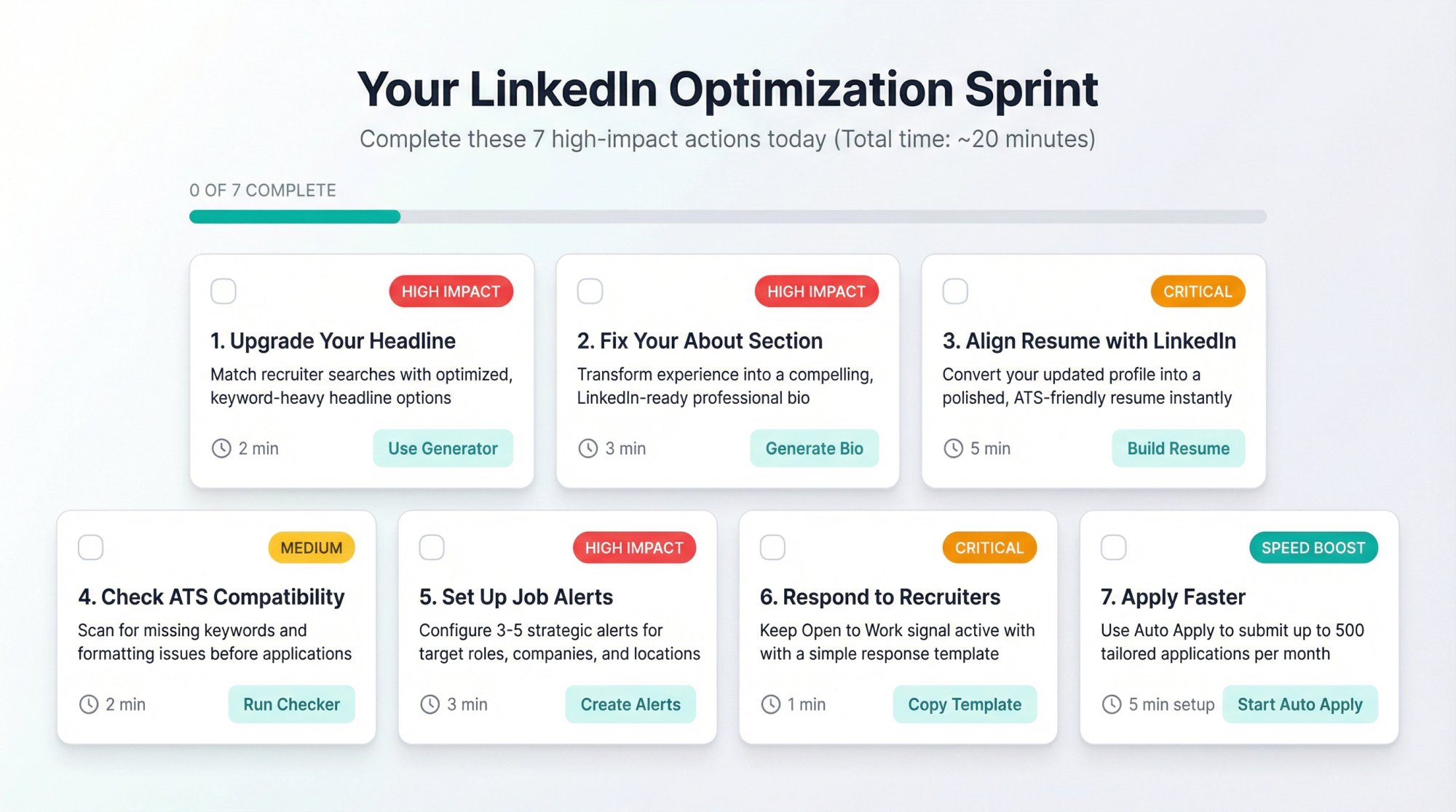
Here's a high-leverage checklist you can complete today:
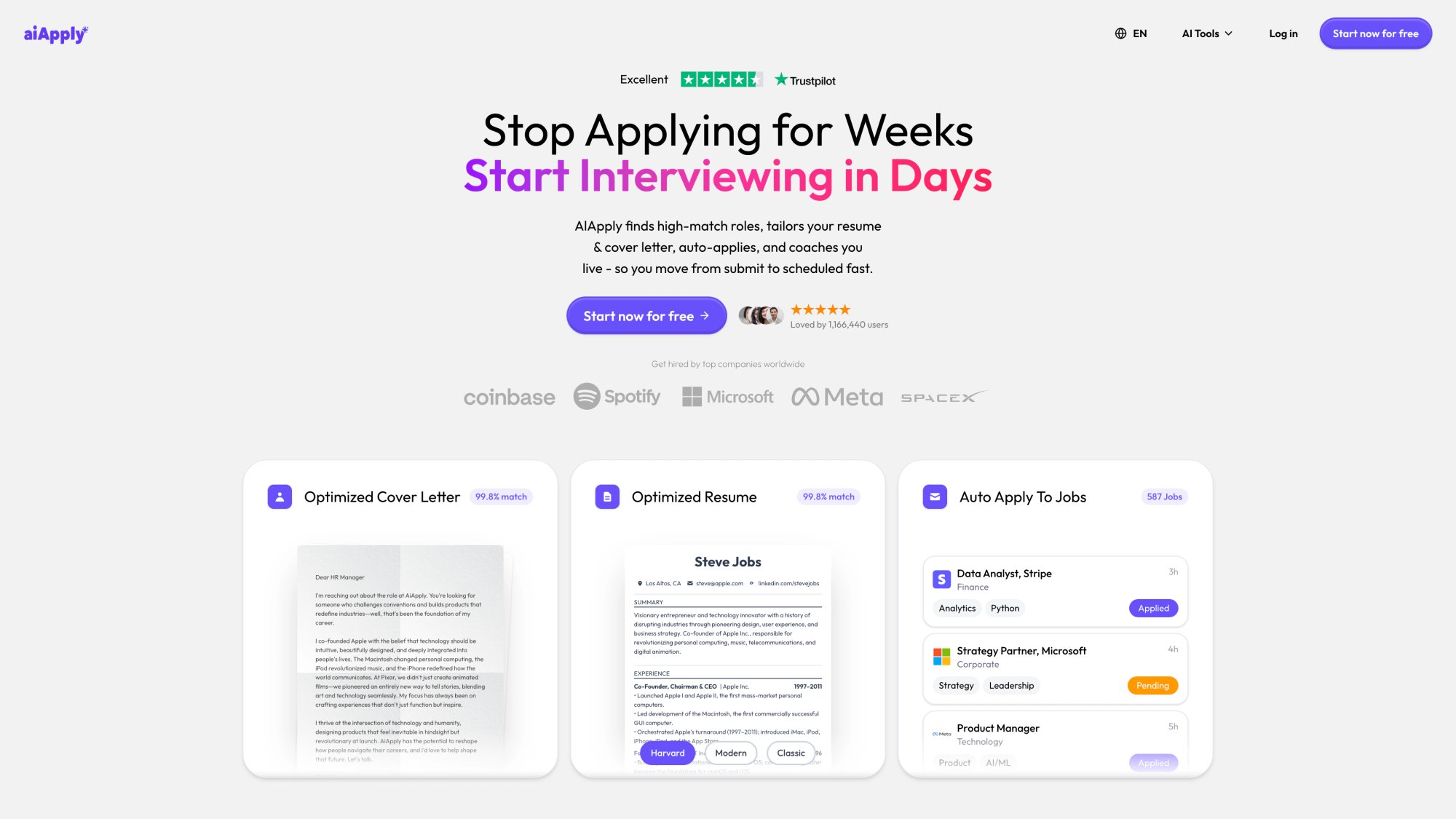
Above: AIApply's comprehensive job search platform offers a complete suite of tools to accelerate your job search, from resume optimization to interview coaching.
1. Upgrade your headline (so you match recruiter searches)
Your headline is one of the first things people see, and it's keyword-heavy. A generic headline like "Marketing Professional" won't cut it.
We built a free LinkedIn Headline Generator that produces recruiter-optimized headline options in seconds. It uses your role and industry to create headlines that actually show up in searches.
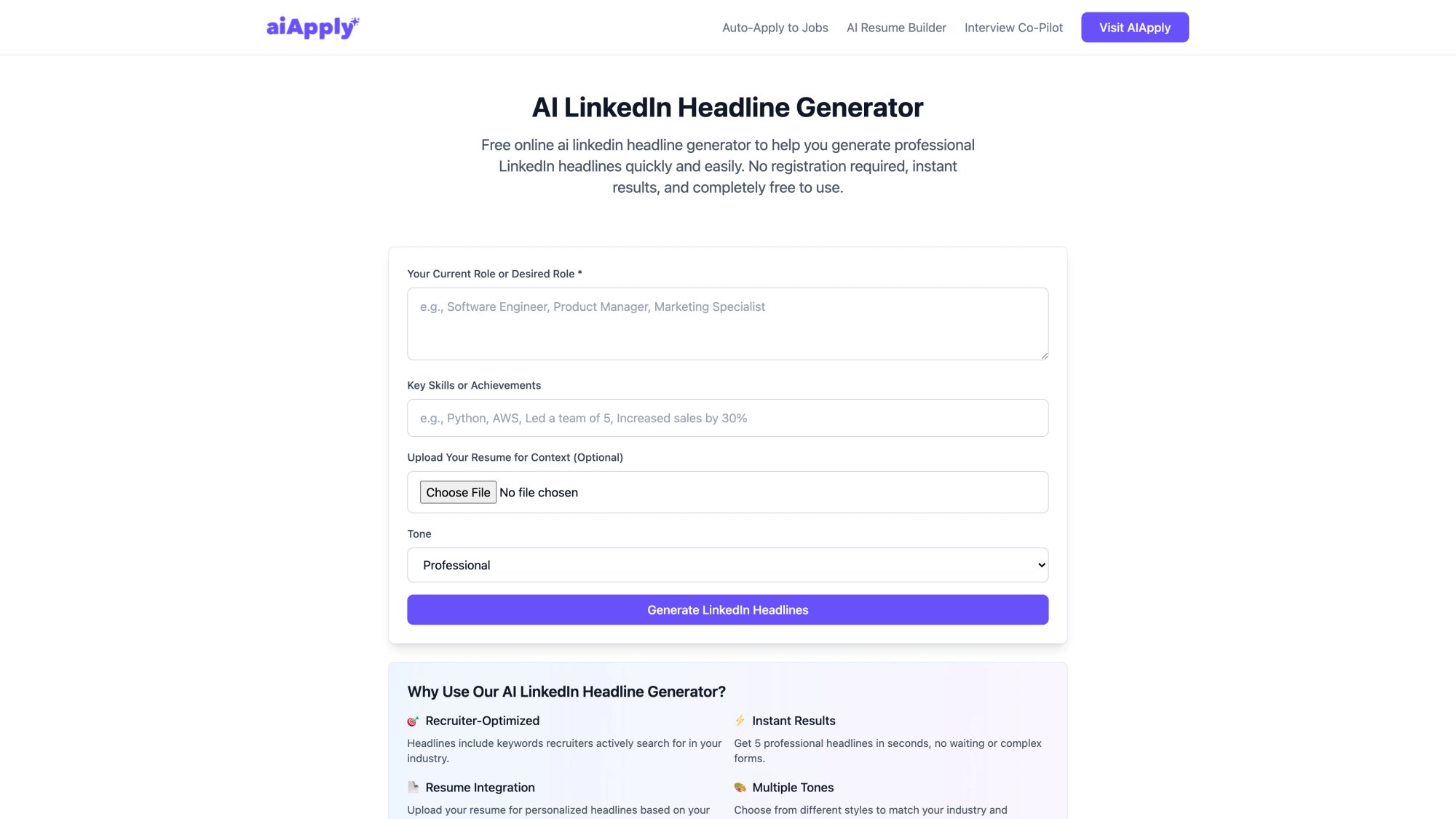
Above: The LinkedIn Headline Generator provides instant, recruiter-optimized headline suggestions tailored to your role and industry.
2. Fix your "About" section (so you read like a real hire, not a resume clone)
If your About section is vague or sounds like a bulleted resume, Open to Work won't save you. Recruiters want to see measurable achievements and personality.
Our free Professional Bio Generator turns your experience into a clean, LinkedIn-ready bio. Copy it into your About section and edit to match your voice.
3. Keep your resume aligned with your updated LinkedIn profile
When a recruiter asks for your resume, speed matters. If you have to scramble to update it, you've already lost momentum.
Our Resume Builder from LinkedIn converts your LinkedIn profile into a polished, ATS-friendly resume in minutes. You can tailor it per job without starting from scratch every time.
Alternatively, use our AI Resume Builder to create customized resumes that align with specific job descriptions.
4. Sanity-check ATS compatibility
Even if LinkedIn gets you the conversation, most companies still run your resume through an Applicant Tracking System. If it's formatted wrong or missing key terms, it gets filtered out before a human sees it.
Our free Resume ATS Checker flags missing keywords and formatting issues quickly so you know what to fix. Learn more about what an ATS is and how to beat it.
5. Respond to recruiters (so LinkedIn doesn't remove the status)
A simple reply template works:
"Thanks for reaching out. Yes, I'm open to new opportunities. Can you share the role title, location/work model, comp range, and the next step in the process?"
Even if it's not a fit, reply with a polite decline. It keeps the signal active. Need help crafting professional responses? Try our AI Email Generator for recruiter communications.
6. Turn on job alerts (max 20) for your best searches
• Your primary target job title(s)
• A narrower "dream companies" search
• A "stretch" search (roles one level up)
You'll get notified when the right roles appear, without constantly browsing (which can look suspicious if you're employed). Consider using modern job search techniques to maximize your efficiency.
7. Apply faster once you're seeing the right roles
Once you're dialed in and consistently seeing good-fit roles, speed becomes your advantage. The longer you wait to apply, the more candidates pile into the recruiter's inbox.
AIApply helps you generate tailored resumes and cover letters automatically, and streamlines the entire application process so you can move from "interesting role" to "submitted application" in minutes instead of hours.
Our Auto Apply feature can submit up to 500 tailored applications per month, and our AI Cover Letter Generator creates role-specific letters that sound human and avoid AI detection.
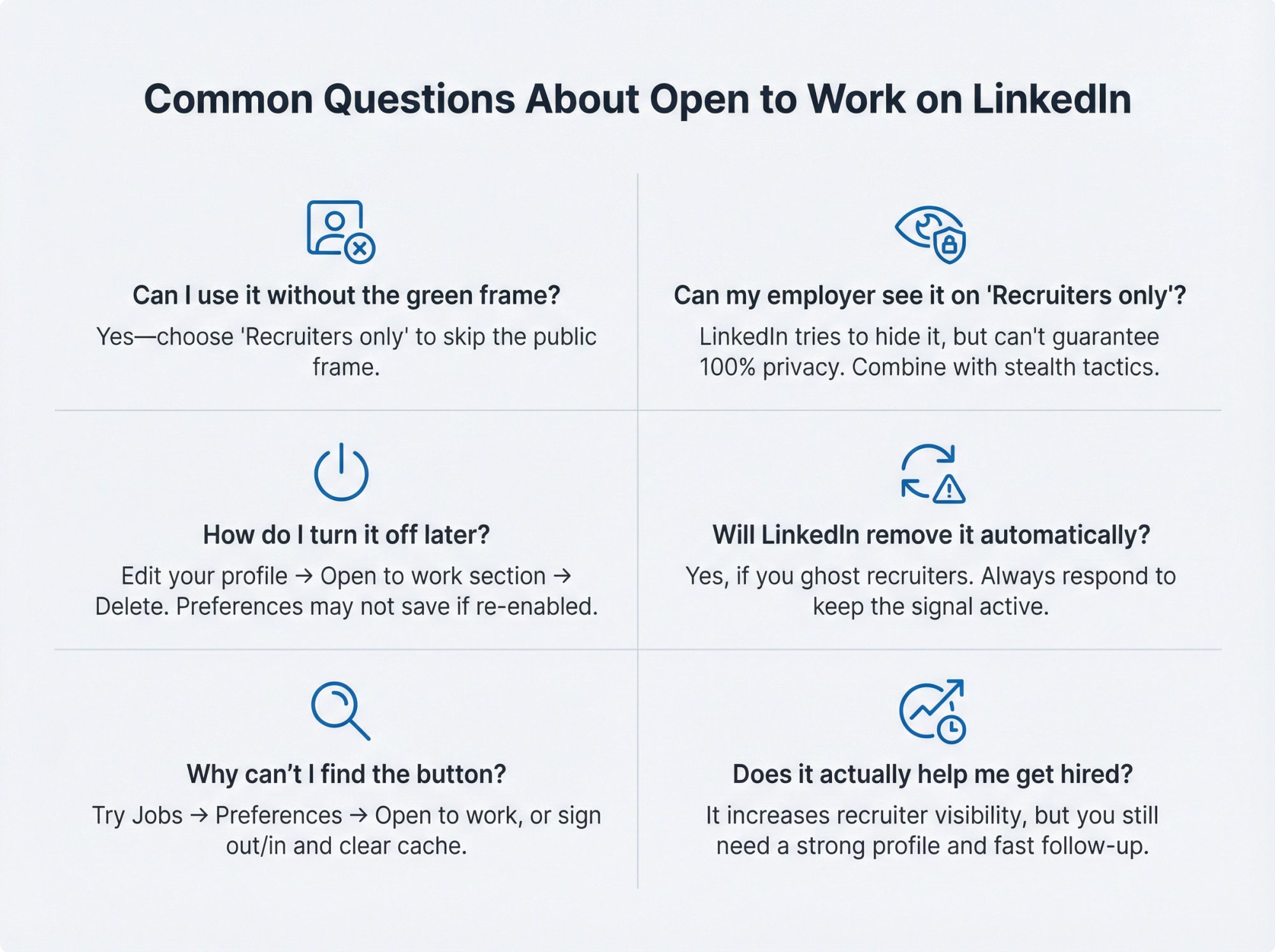
Common Questions About "Open To Work" on LinkedIn
Next Steps: Turn It On and Optimize Your Profile
You now know how to turn on Open to Work, which visibility option to choose, what recruiters see, and how to protect your privacy if you're employed.
The next move is simple: Turn it on (if you haven't already), then spend 15 minutes on the optimization checklist above. Upgrade your headline, refresh your About section, make sure your resume is ready, and set up a few job alerts.
Once that's done, you're positioned to get found by recruiters and actually convert those conversations into interviews. For comprehensive preparation, explore our interview preparation resources and learn how to succeed in a job interview.
If you want to accelerate your job search even further, AIApply offers a complete suite of tools including our Interview Answer Buddy that provides real-time interview coaching, and our Resume Scanner that ensures your application materials are optimized for every opportunity.
Looking for a new job but don't want to announce it to everyone (especially your current boss)? LinkedIn's "Open to Work" feature was built exactly for this. It lets you signal to recruiters that you're available without broadcasting it publicly.
When you set it up correctly, recruiters using LinkedIn Recruiter can find you when they search for candidates matching your target roles. You control who sees it, and you can turn it off whenever you want.
This guide walks you through the exact steps for desktop and mobile, explains the two visibility options (and which one to choose), shows you what recruiters actually see, and gives you a privacy playbook if you're employed and searching for jobs discreetly.
What Does "Open to Work" Actually Do on LinkedIn?
When you enable Open to Work, you're adding job preferences to your LinkedIn profile. Things like job titles you want, locations you're considering, and whether you're open to remote work. LinkedIn shares these preferences with recruiters who use LinkedIn Recruiter so they can find you in searches.
Here's what most people miss:
Your preferences aren't automatically public. By default, they're only visible to recruiters using LinkedIn Recruiter. You have to explicitly choose to share with all LinkedIn members if you want the full public signal.
The catch:
"Recruiters-only" isn't a perfect privacy shield. LinkedIn says it takes steps to prevent recruiters at your current company (and related companies) from seeing your preferences, but it can't guarantee 100% accuracy. Company mappings aren't perfect, and recruiters can move between organizations.
If you're employed and need absolute discretion, combine "recruiters-only" mode with the privacy strategies for job searching while employed we cover later.
How To Turn On "Open To Work" (Step-by-Step)
If you just want the fastest path, here it is:
① Go to your LinkedIn profile
② Click "Open to" (in your intro section, near your headline)
③ Select "Finding a new job"
④ Fill in your job preferences (titles, locations, start date, employment type)
⑤ Choose visibility: "Recruiters only" or "All LinkedIn members"
⑥ Save (click "Add to profile")
That's it. These steps work on desktop and mobile, and you can edit or turn it off anytime.
Above: LinkedIn's official help documentation provides detailed guidance on enabling and configuring the Open to Work feature, including visibility options and privacy considerations.
Privacy matters: If you're employed and need discretion, "recruiters-only" mode is your safest bet, but combine it with the privacy strategies below for maximum protection.
Let's walk through the details so you don't accidentally share it with the wrong people.
How To Turn On Open to Work on Desktop
Here's the step-by-step for LinkedIn on a desktop browser:
1. Go to your LinkedIn profile page (make sure you're signed in at LinkedIn.com).
2. Find the "Open to" button in your intro section, right near your headline. Click it.
3. Choose "Finding a new job" from the options LinkedIn shows.
4. Complete your job preferences. LinkedIn will prompt you for:
• Job titles you're interested in
• Locations (and whether you're open to remote)
• Start date / availability
• Employment type (full-time, contract, part-time, etc.)
Note: If you're in certain regions like India, you might also see fields for salary expectations and notice period.
5. Choose who can see you're open. This is the critical decision:
→ Recruiters only (recommended if you're employed and want discretion)
→ All LinkedIn members (public signal, plus optional green #OpenToWork photo frame)
6. Click "Add to profile" to save.
Your Open to Work status is now live, and recruiters can start seeing your preferences when they search.
How To Turn On Open to Work on Mobile
The mobile process is nearly identical:
1. Open the LinkedIn app on your phone.
2. Tap your profile photo, then tap "View Profile."
3. Tap "Open to" in your intro section.
4. Tap "Finding a new job" and fill out the same preferences (job titles, locations, start date, employment type).
5. Choose visibility:
→ Recruiters only
→ All LinkedIn members
6. Save.
If something doesn't load correctly on mobile, LinkedIn recommends signing out and back in, trying incognito mode, or clearing your cache. You can also enable it via the Jobs tab if the "Open to" button isn't showing up.
Can't Find the "Open to" Button? Try This
LinkedIn gives you an alternate route if your profile view is glitching or the "Open to" button isn't visible:
Go to the Jobs tab in LinkedIn
Look for "Preferences"
Select "Open to work" and toggle it on
This method pulls up the same settings, just from a different entry point. Use it if the profile button isn't cooperating.
"Recruiters Only" vs "All LinkedIn Members": Which Is Better?
This choice determines who sees you're open and whether the green #OpenToWork photo frame appears on your profile.
When to choose "Recruiters only"
Pick this if you're currently employed, exploring quietly, or don't want your network asking questions.
• Only recruiters using LinkedIn Recruiter can access your career interests.
• LinkedIn says it tries to hide your preferences from recruiters at your current company (and related companies), but it can't guarantee perfect privacy. Company mappings aren't perfect.
• You typically won't show the public green frame on your profile photo.
When to choose "All LinkedIn members"
Pick this if you're openly job searching, unemployed, or actively asking for referrals.
• Your status becomes visible to all members, including people at your current company.
• LinkedIn can add the green #OpenToWork frame to your profile photo (a strong public signal).
• You'll likely get more direct messages and connection requests from your network (which can be good or overwhelming, depending on your situation).
A simple decision rule
Employed + want discretion? → Recruiters only
Openly searching + want referrals? → All LinkedIn members
The simple truth: If you're unsure about visibility, start with "recruiters only." You can always switch to public later, but you can't unsend a public signal.
What Do Recruiters See When You Turn On "Open To Work"?
Understanding the recruiter view helps you set preferences that get you found.
According to LinkedIn's Recruiter documentation:
• Candidates flagged as "Open to Work" can appear in Recruiter search results using an Open to work spotlight or filter.
• Recruiters may see an "Open to Work" indicator in the results list and in your profile view inside Recruiter.
• If you're sharing Open to Work with all members, recruiters will also see the #OpenToWork photo frame on your regular LinkedIn profile.
What this means for you: Your chosen job titles and locations aren't just "preferences." They become part of how you're discovered. Be intentional about what you select.
How to set preferences recruiters actually search for
Use the exact job titles recruiters search for. If you're a "Marketing Manager," don't just put "Marketer." Include common variants too. Check out relevant career pages on AIApply to see how roles are typically titled.
Don't choose every location on Earth. Pick the places you'd actually accept a job. If you select 50 cities, you'll get messaged for roles you don't want.
Specify remote/hybrid/on-site clearly so you don't waste time on mismatched outreach.
How To Edit or Turn Off "Open To Work"
You're not locked in. You can update your preferences or disable the feature anytime.
To edit your preferences
1. Go to your profile
2. Find the "Open to work" section
3. Click/tap the pencil (edit) icon
4. Update your job titles, locations, or visibility setting
To turn it off completely
Inside that same edit view, choose "Delete" to disable Open to Work entirely. LinkedIn notes that if you re-enable it later, your previous preferences might not be saved, so you may need to set them up again.
LinkedIn can remove it automatically (if you ghost recruiters)
Here's something most people don't know: LinkedIn says if it notices you stop responding to InMails, it may email you to confirm you still want Open to Work enabled. If you don't confirm, LinkedIn might remove the status until you turn it on again.
Keep the signal active: LinkedIn may remove your Open to Work status if you ghost recruiters. Even a polite "not a fit" response keeps you visible in searches.
So if you enable it, respond to recruiter messages (even if it's just a polite "not a fit"). It keeps the signal active and helps you attract the right job recruiters.
How To Job Search Privately While Employed
Open to Work "recruiters-only" mode is a start, but your activity can still signal job searching. Sudden profile edits, new connections with recruiters, and browsing hiring managers at target companies all leave footprints.
Here's how to tighten things up:
① Turn off "Share profile updates" (so edits aren't broadcast)
By default, LinkedIn notifies your network when you make job changes, education changes, and other profile updates. You can turn this off in your settings.
This is one of the biggest stealth moves if you're planning to refresh your headline, add new skills, or optimize your LinkedIn profile for better recruiter visibility.
② Hide your connections list (optional but powerful)
By default, your 1st-degree connections can browse your connections list. You can change this in Settings → Visibility → Connections.
Note: LinkedIn's documentation for this setting is older (last updated 3 years ago as of this writing), but the setting still exists in current Visibility controls.
③ Browse profiles in private mode when researching companies or people
If you're viewing hiring managers, recruiters, or target companies and want fewer signals, LinkedIn offers private and semi-private browsing modes.
Tradeoff: Private mode limits the details you see about who viewed your profile (depending on your account type).
④ Use job alerts instead of scrolling the Jobs tab constantly
LinkedIn job alerts are underrated and fast. You can create alerts for specific searches and choose notification frequency. LinkedIn says the max number of job alerts is 20, so use them strategically.
Set alerts for your target job titles, dream companies, and maybe one "stretch" search (roles one level up). You're notified when the right opportunities appear, without having to browse Jobs every day (which can look suspicious if you're doing it from your work laptop).
You can also use job application tracking tools to organize your search efficiently.
Open To Work Not Showing? How To Fix It
If LinkedIn's Open to Work settings aren't appearing or something errors out, LinkedIn's troubleshooting checklist is:
1. Sign out and sign back in
2. Try incognito/private browsing mode
3. Clear cache and cookies
4. Try a different browser (and make sure it's up-to-date)
Also check:
• You're editing a personal profile (not a company page)
• Your LinkedIn app is updated (if on mobile)
• If your profile view is glitchy, use the Jobs → Preferences → Open to work method instead
What To Do After Turning On "Open To Work"
Turning on Open to Work is step one. Step two is making sure that when recruiters land on your profile, they immediately understand your value and want to reach out.
Here's a high-leverage checklist you can complete today:
Above: AIApply's comprehensive job search platform offers a complete suite of tools to accelerate your job search, from resume optimization to interview coaching.
1. Upgrade your headline (so you match recruiter searches)
Your headline is one of the first things people see, and it's keyword-heavy. A generic headline like "Marketing Professional" won't cut it.
We built a free LinkedIn Headline Generator that produces recruiter-optimized headline options in seconds. It uses your role and industry to create headlines that actually show up in searches.
Above: The LinkedIn Headline Generator provides instant, recruiter-optimized headline suggestions tailored to your role and industry.
2. Fix your "About" section (so you read like a real hire, not a resume clone)
If your About section is vague or sounds like a bulleted resume, Open to Work won't save you. Recruiters want to see measurable achievements and personality.
Our free Professional Bio Generator turns your experience into a clean, LinkedIn-ready bio. Copy it into your About section and edit to match your voice.
3. Keep your resume aligned with your updated LinkedIn profile
When a recruiter asks for your resume, speed matters. If you have to scramble to update it, you've already lost momentum.
Our Resume Builder from LinkedIn converts your LinkedIn profile into a polished, ATS-friendly resume in minutes. You can tailor it per job without starting from scratch every time.
Alternatively, use our AI Resume Builder to create customized resumes that align with specific job descriptions.
4. Sanity-check ATS compatibility
Even if LinkedIn gets you the conversation, most companies still run your resume through an Applicant Tracking System. If it's formatted wrong or missing key terms, it gets filtered out before a human sees it.
Our free Resume ATS Checker flags missing keywords and formatting issues quickly so you know what to fix. Learn more about what an ATS is and how to beat it.
5. Respond to recruiters (so LinkedIn doesn't remove the status)
A simple reply template works:
"Thanks for reaching out. Yes, I'm open to new opportunities. Can you share the role title, location/work model, comp range, and the next step in the process?"
Even if it's not a fit, reply with a polite decline. It keeps the signal active. Need help crafting professional responses? Try our AI Email Generator for recruiter communications.
6. Turn on job alerts (max 20) for your best searches
• Your primary target job title(s)
• A narrower "dream companies" search
• A "stretch" search (roles one level up)
You'll get notified when the right roles appear, without constantly browsing (which can look suspicious if you're employed). Consider using modern job search techniques to maximize your efficiency.
7. Apply faster once you're seeing the right roles
Once you're dialed in and consistently seeing good-fit roles, speed becomes your advantage. The longer you wait to apply, the more candidates pile into the recruiter's inbox.
AIApply helps you generate tailored resumes and cover letters automatically, and streamlines the entire application process so you can move from "interesting role" to "submitted application" in minutes instead of hours.
Our Auto Apply feature can submit up to 500 tailored applications per month, and our AI Cover Letter Generator creates role-specific letters that sound human and avoid AI detection.
Common Questions About "Open To Work" on LinkedIn
Next Steps: Turn It On and Optimize Your Profile
You now know how to turn on Open to Work, which visibility option to choose, what recruiters see, and how to protect your privacy if you're employed.
The next move is simple: Turn it on (if you haven't already), then spend 15 minutes on the optimization checklist above. Upgrade your headline, refresh your About section, make sure your resume is ready, and set up a few job alerts.
Once that's done, you're positioned to get found by recruiters and actually convert those conversations into interviews. For comprehensive preparation, explore our interview preparation resources and learn how to succeed in a job interview.
If you want to accelerate your job search even further, AIApply offers a complete suite of tools including our Interview Answer Buddy that provides real-time interview coaching, and our Resume Scanner that ensures your application materials are optimized for every opportunity.
.webp)
%20(1).webp)
.webp)
Don't miss out on
your next opportunity.
Create and send applications in seconds, not hours.


